> For the complete documentation index, see [llms.txt](https://tailwindsdocs.innovativesol.com/llms.txt). Markdown versions of documentation pages are available by appending `.md` to page URLs; this page is available as [Markdown](https://tailwindsdocs.innovativesol.com/readme/chatflows/langchain/chat-models/google-vertexai.md).
# Google VertexAI
## Prerequisites
1. [Start your GCP](https://cloud.google.com/docs/get-started)
2. Install the [Google Cloud CLI](https://cloud.google.com/sdk/docs/install-sdk)
## Setup
### Enable vertex AI API
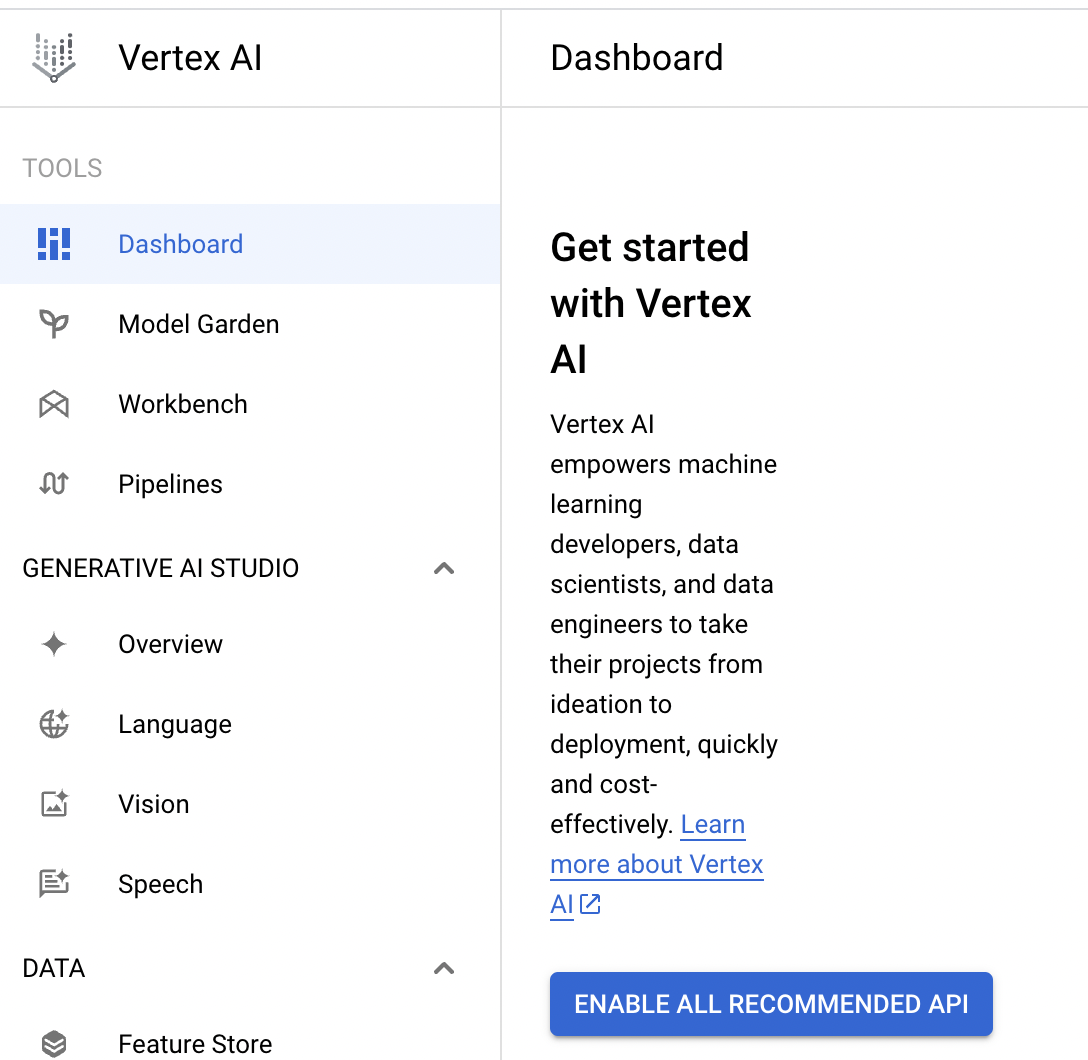
1. Go to Vertex AI on GCP and click **"ENABLE ALL RECOMMENDED API"**
## Create credential file *(Optional)*
There are 2 ways to create credential file
### No. 1 : Use GCP CLI
1. Open terminal and run the following command
```bash
gcloud auth application-default login
```
2. Login to your GCP account
3. Check your credential file. You can find your credential file in `~/.config/gcloud/application_default_credentials.json`
### No. 2 : Use GCP console
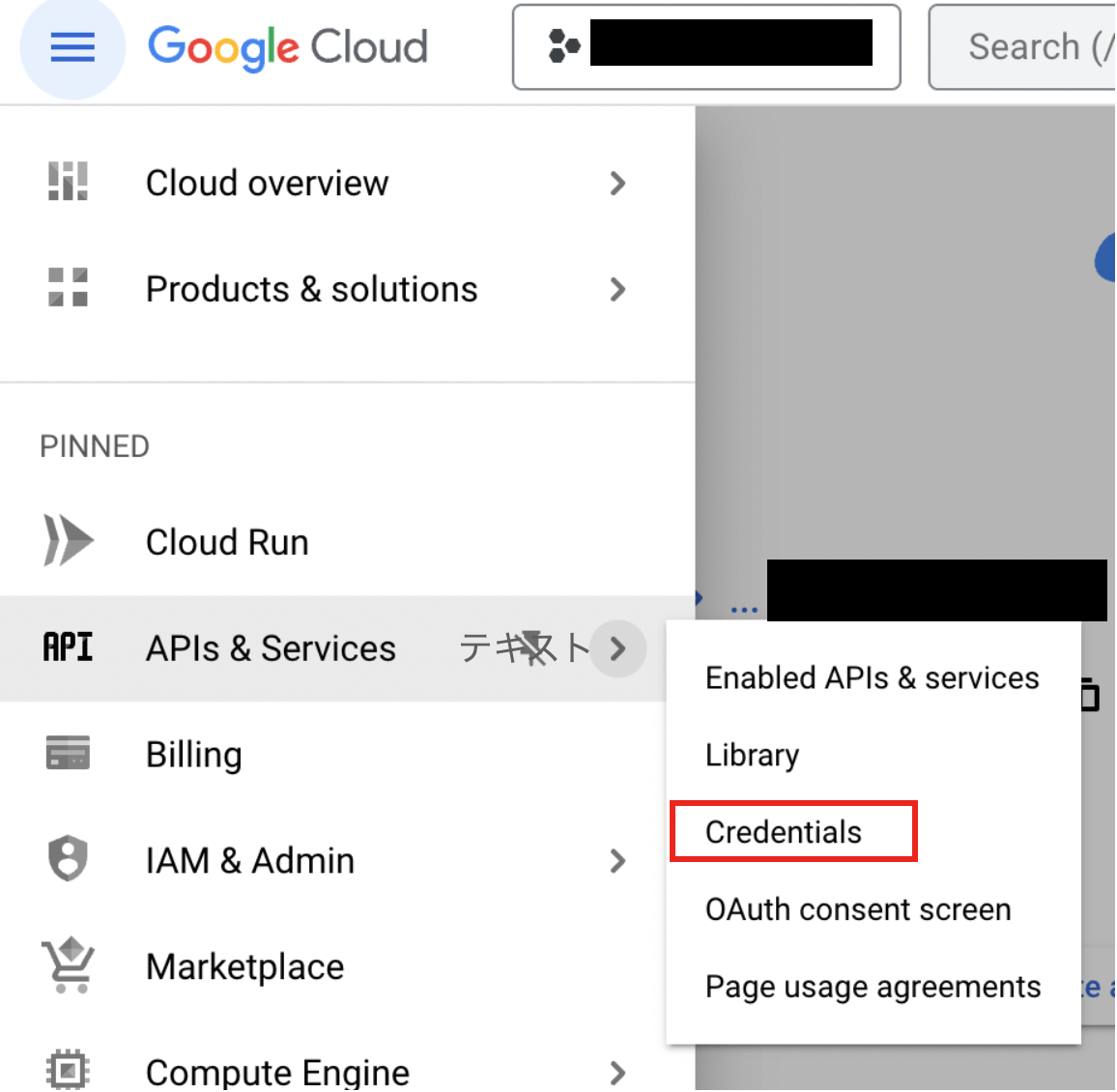
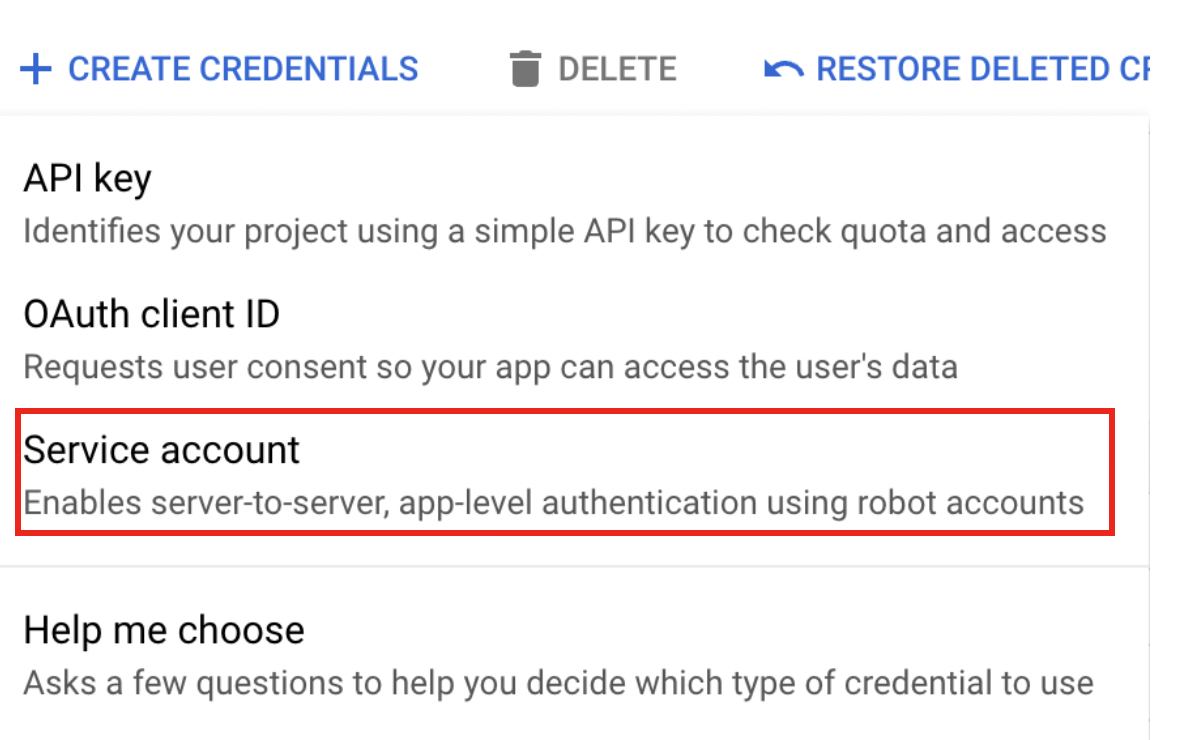
1. Go to GCP console and click **"CREATE CREDENTIALS"**
2. Create service account
3. Fill in the form of Service account details and click **"CREATE AND CONTINUE"**
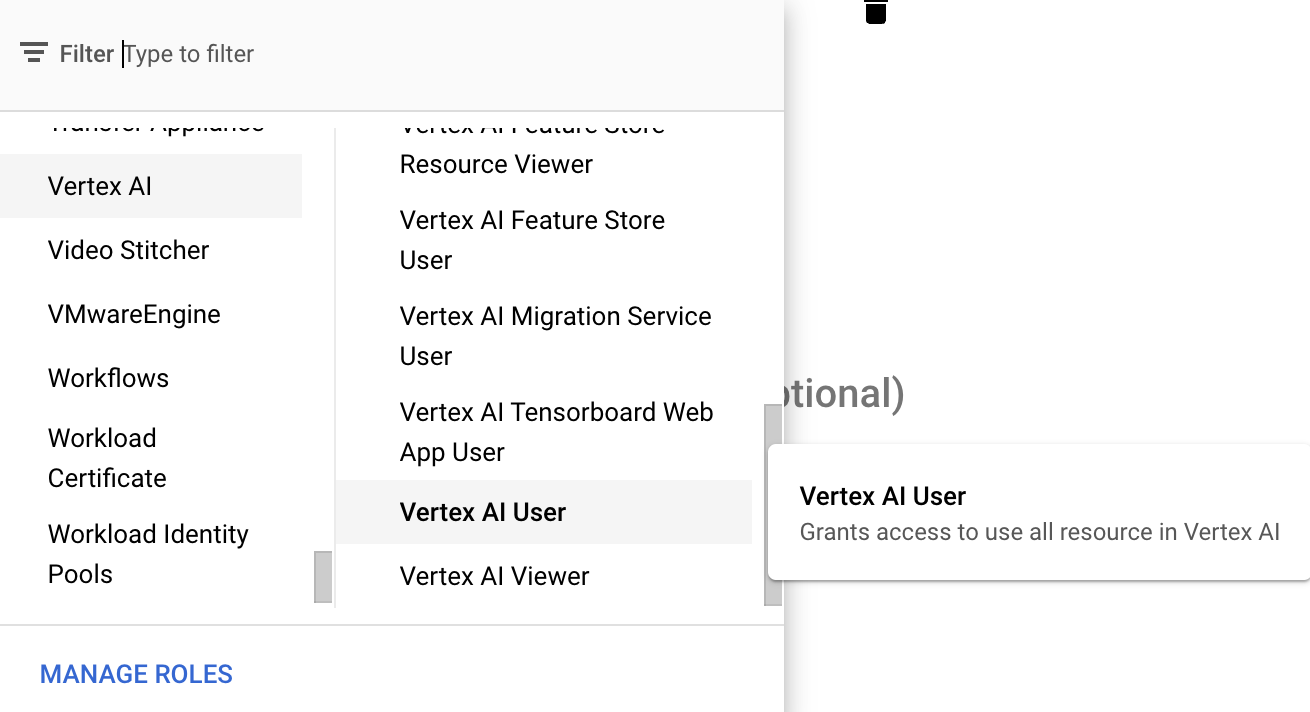
4. Select proper role (for example Vertex AI User) and click **"DONE"**
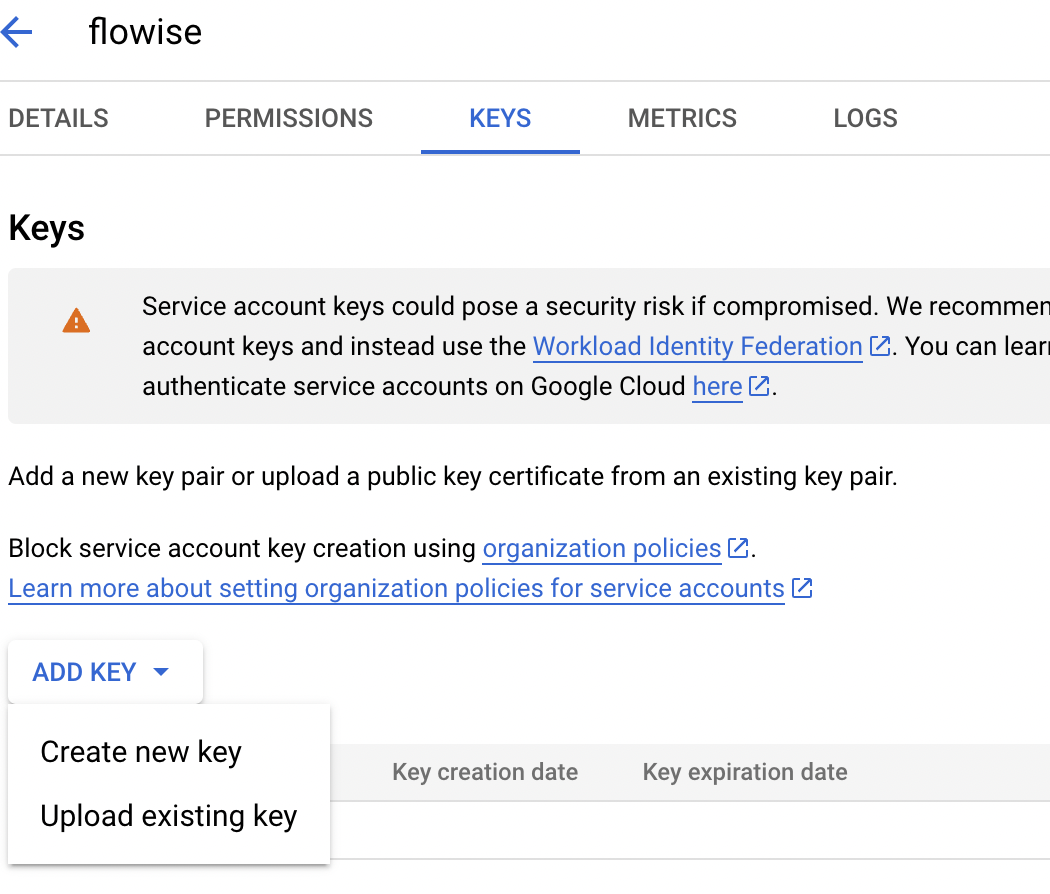
5. Click service account that you created and click **"ADD KEY" -> "Create new key"**
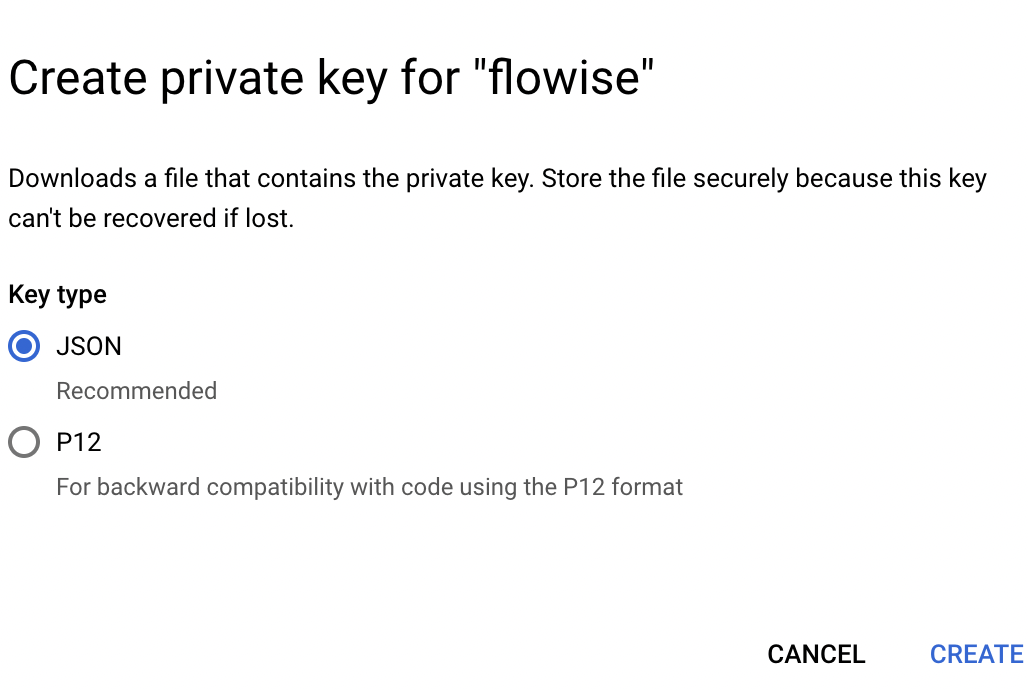
6. Select JSON and click **"CREATE"** then you can download your credential file
## Tailwinds
### Without credential file
If you are using a GCP service like Cloud Run, or if you have installed default credentials on your local machine, you do not need to set this credential.
### With credential file
1. Go to Credential page on Tailwinds and click **"Add credential"**
2. Click Google Vertex Auth
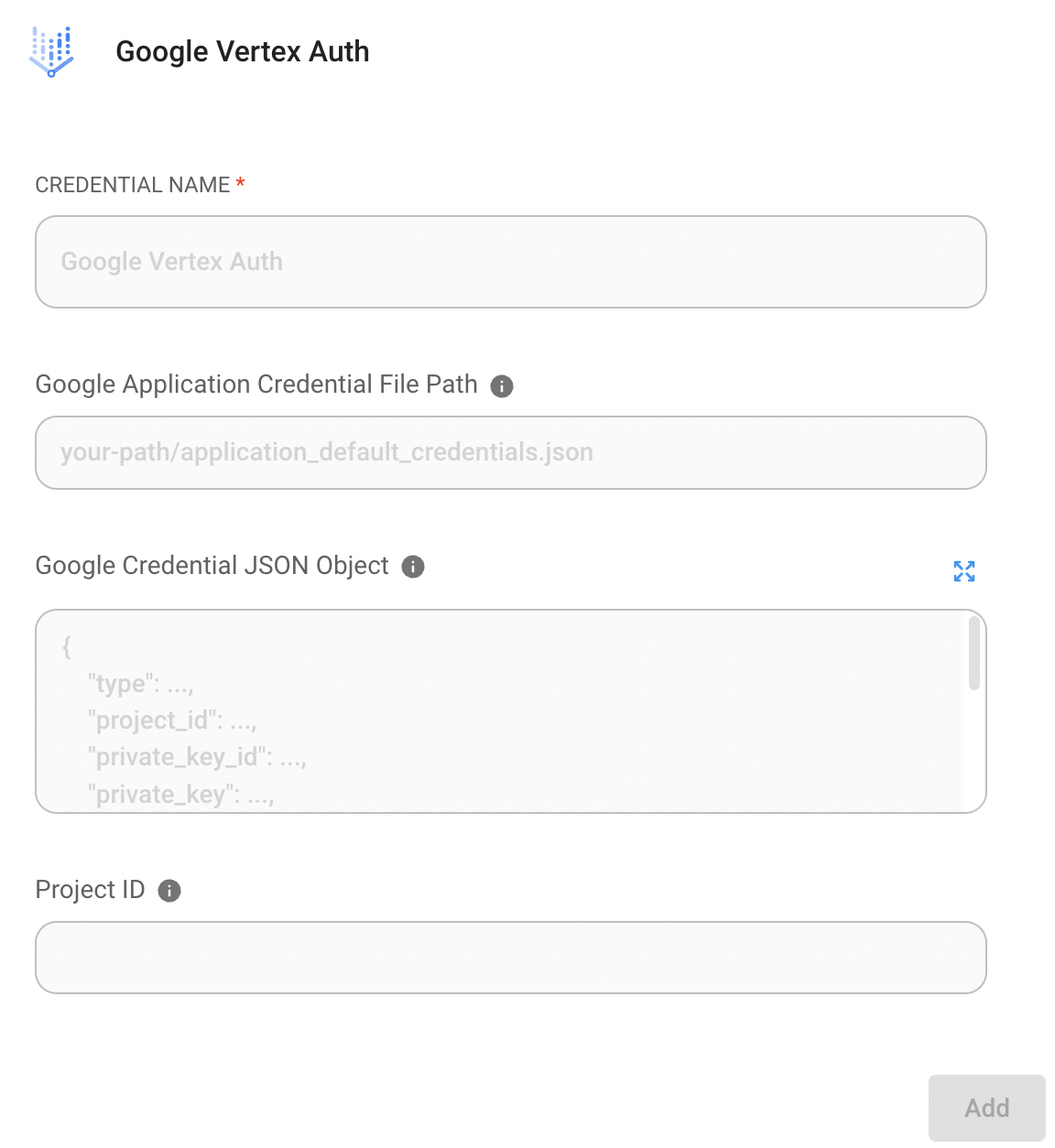
3. Register your credential file. There are 2 ways to register your credential file.
* **Option 1 : Enter path of your credential file**
* If you have credential file on your machine, you can enter the path of your credential file into `Google Application Credential File Path`
* **Option 2 : Paste text of your credential file**
* Or you can copy all text in the credential file and paste it into `Google Credential JSON Object`
4. Finally, click "Add" button.
5. **🎉**You can now use ChatGoogleVertexAI with the credential in Tailwinds now!
### Resources
* [LangChain JS GoogleVertexAI](https://js.langchain.com/docs/api/llms_googlevertexai/classes/GoogleVertexAI)
* [Google Service accounts overview](https://cloud.google.com/iam/docs/service-account-overview?)
%20(1)%20(1)%20(1)%20(1)%20(1)%20(1)%20(1)%20(1)%20(1)%20(1)%20(1).png?alt=media)