> For the complete documentation index, see [llms.txt](https://tailwindsdocs.innovativesol.com/llms.txt). Markdown versions of documentation pages are available by appending `.md` to page URLs; this page is available as [Markdown](https://tailwindsdocs.innovativesol.com/readme/use-cases/web-scrape-qna.md).
# Web Scrape QnA
Learn how to scrape, upsert, and query a website
***
Let's say you have a website (could be a store, an ecommerce site, a blog), and you want to scrap all the relative links of that website and have LLM answer any question on your website. In this tutorial, we are going to go through how to achieve that.
You can find the example flow called - **WebPage QnA** from the marketplace templates.
## Setup
We are going to use **Cheerio Web Scraper** node to scrape links from a given URL and the **HtmlToMarkdown Text Splitter** to split the scraped content into smaller pieces.
If you do not specify anything, by default only the given URL page will be scraped. If you want to crawl the rest of relative links, click **Additional Parameters** of Cheerio Web Scraper.
## 1. Crawl Multiple Pages
1. Select `Web Crawl` or `Scrape XML Sitemap` in **Get Relative Links Method**.
2. Input `0` in **Get Relative Links Limit** to retrieve all links available from the provided URL.
### Manage Links (Optional)
1. Input desired URL to be crawled.
2. Click **Fetch Links** to retrieve links based on the inputs of the **Get Relative Links Method** and **Get Relative Links Limit** in **Additional Parameters**.
3. In **Crawled Links** section, remove unwanted links by clicking **Red Trash Bin Icon**.
4. Lastly, click **Save**.
## 2. Upsert
1. On the top right corner, you will notice a green button:
2. A dialog will be shown that allow users to upsert data to Pinecone:
**Note:** Under the hood, following actions will be executed:
* Scraped all HTML data using Cheerio Web Scraper
* Convert all scraped data from HTML to Markdown, then split it
* Splitted data will be looped over, and converted to vector embeddings using OpenAI Embeddings
* Vector embeddings will be upserted to Pinecone
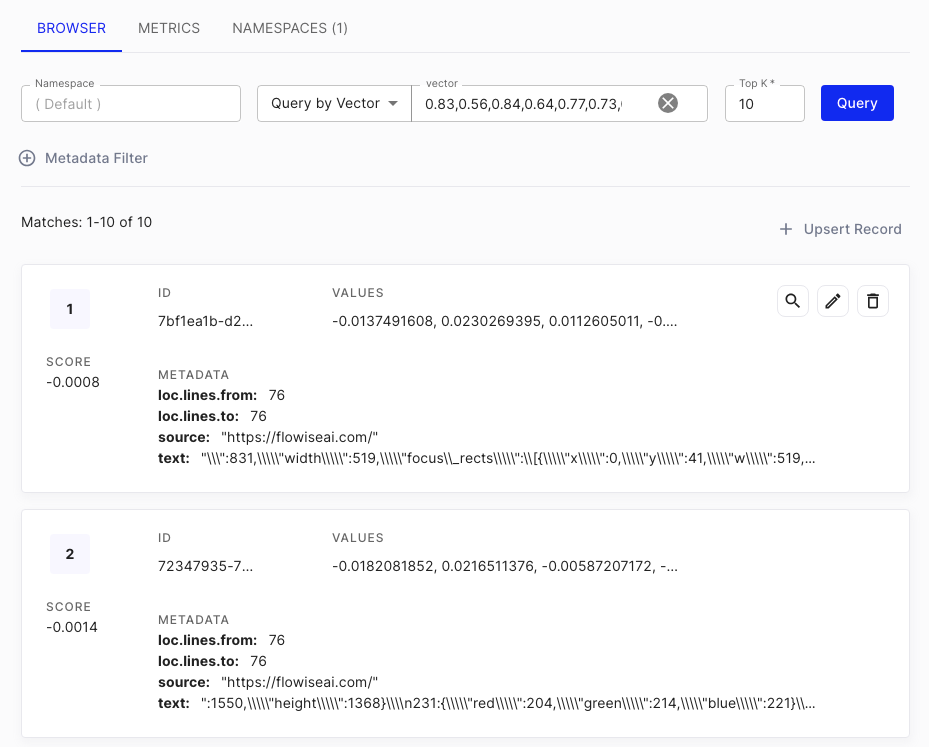
3. On the [Pinecone console](https://app.pinecone.io) you will be able to see the new vectors that were added.
## 3. Query
Querying is relatively straight-forward. After you have verified that data is upserted to vector database, you can start asking question in the chat:
In the Additional Parameters of Conversational Retrieval QA Chain, you can specify 2 prompts:
* **Rephrase Prompt:** Used to rephrase the question given the past conversation history
* **Response Prompt:** Using the rephrased question, retrieve the context from vector database, and return a final response
{% hint style="info" %}
It is recommended to specify a detailed response prompt message. For example, you can specify the name of AI, the language to answer, the response when answer its not found (to prevent hallucination).
{% endhint %}
You can also turn on the Return Source Documents option to return a list of document chunks where the AI's response is coming from.
## Additional Web Scraping
Apart from Cheerio Web Scraper, there are other nodes that can perform web scraping as well:
* **Puppeteer:** Puppeteer is a Node.js library that provides a high-level API for controlling headless Chrome or Chromium. You can use Puppeteer to automate web page interactions, including extracting data from dynamic web pages that require JavaScript to render.
* **Playwright:** Playwright is a Node.js library that provides a high-level API for controlling multiple browser engines, including Chromium, Firefox, and WebKit. You can use Playwright to automate web page interactions, including extracting data from dynamic web pages that require JavaScript to render.
* **Apify:** [Apify](https://apify.com/) is a cloud platform for web scraping and data extraction, which provides an [ecosystem](https://apify.com/store) of more than a thousand ready-made apps called *Actors* for various web scraping, crawling, and data extraction use cases.
{% hint style="info" %}
The same logic can be applied to any document use cases, not just limited to web scraping!
{% endhint %}
.png?alt=media)
.png?alt=media)
.png?alt=media)
%20(1)%20(1)%20(1)%20(1)%20(1)%20(1)%20(1)%20(1)%20(1)%20(1)%20(2).png?alt=media)
%20(1)%20(1)%20(1)%20(1)%20(1)%20(1)%20(1)%20(1)%20(1)%20(2).png?alt=media)
.png?alt=media)
%20(1)%20(1)%20(1).png?alt=media)
.png?alt=media)